Create From Standalone Desktop
-
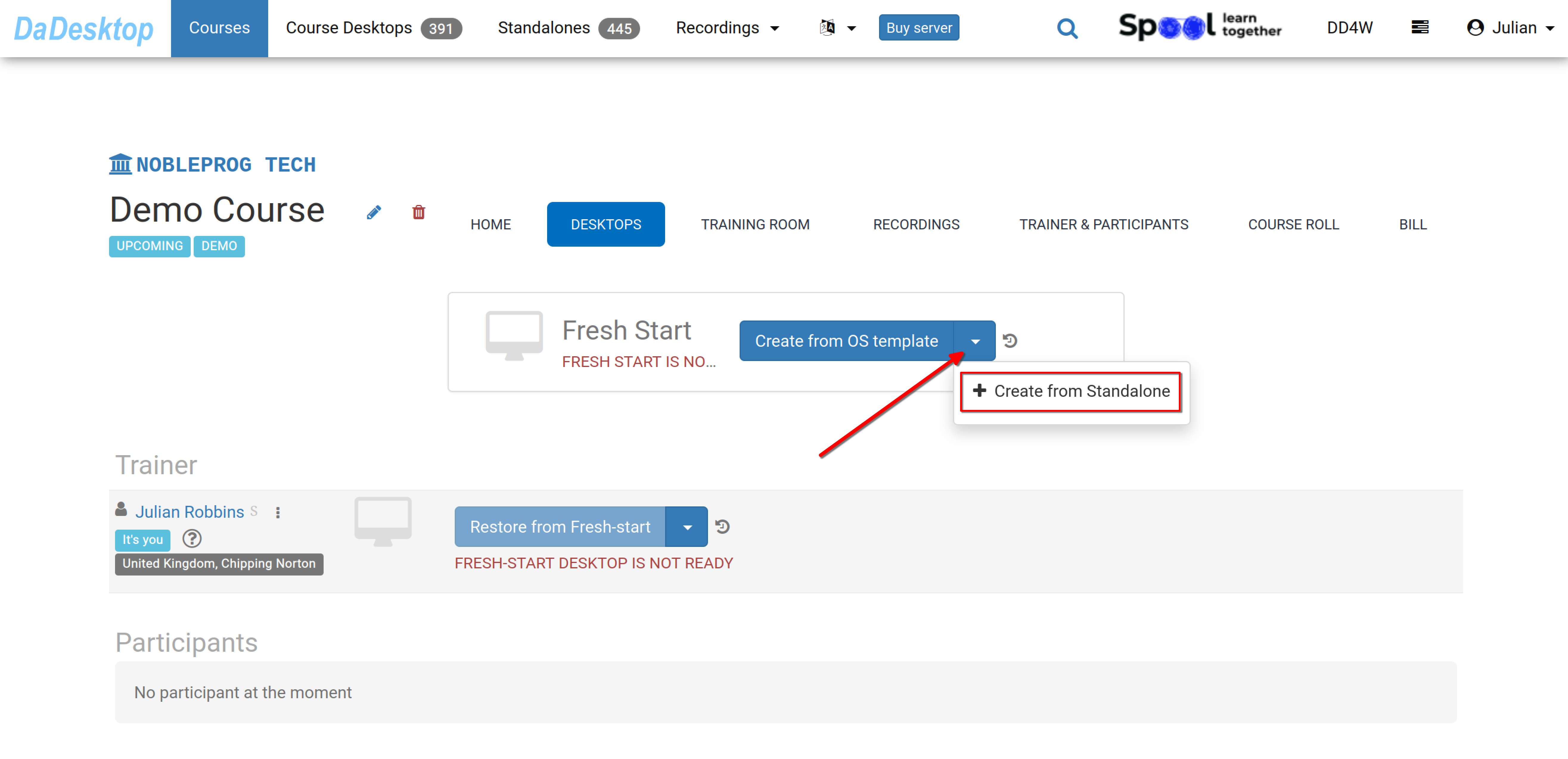
Navigate to the course you’ve set up; below is a sample Demo course. Then go to the Desktops tab, click the dropdown arrow, and select “Create from Standalone” to start building your Fresh Start.
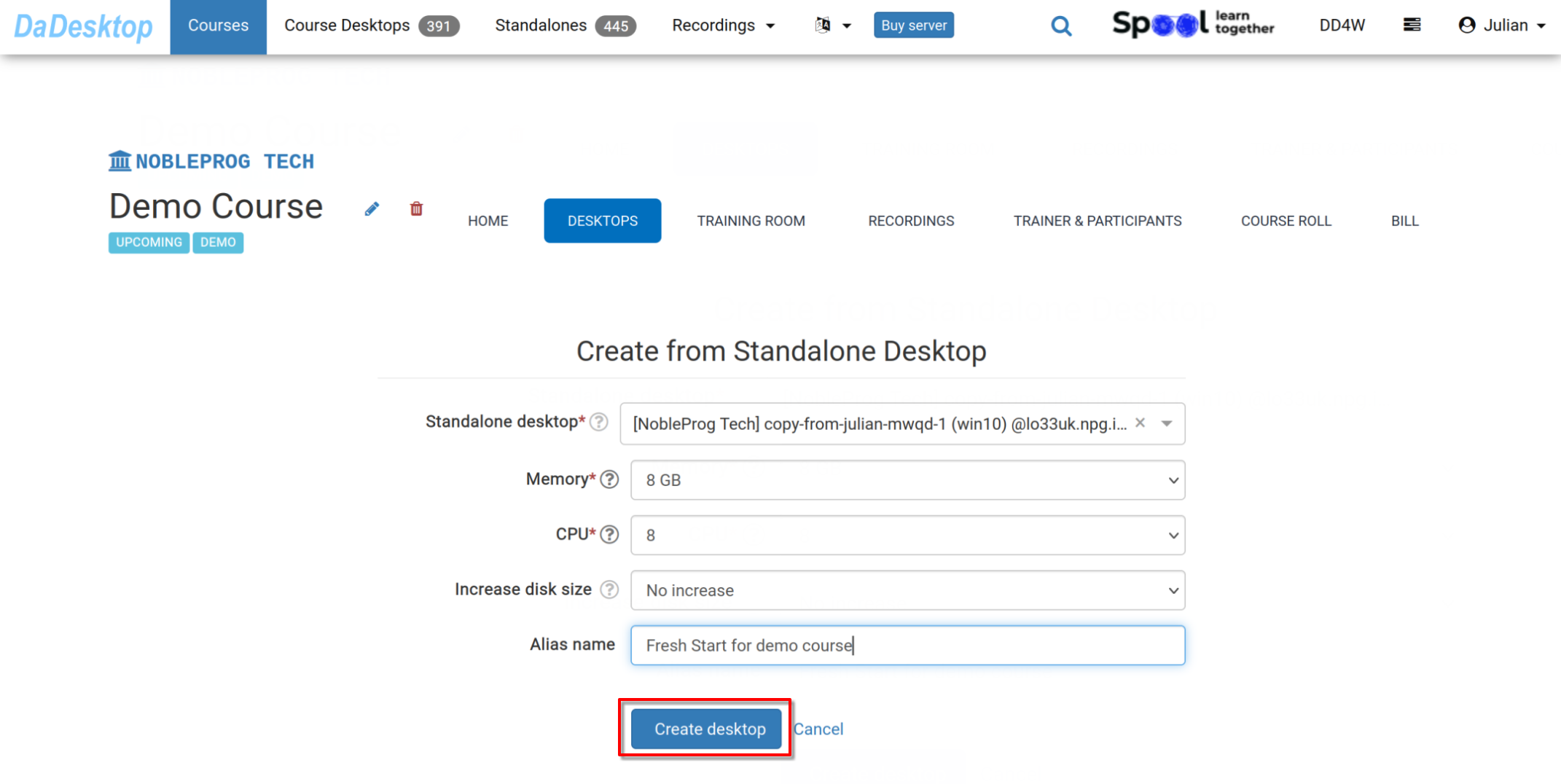
- Pick the “Standalone desktop” you’ve previously used to configure the course environment (software, materials, quizzes, etc.).
-
During this step, you can adjust the Memory and CPU allocations, and expand the disk size if needed. Then click “Create desktop”.
-
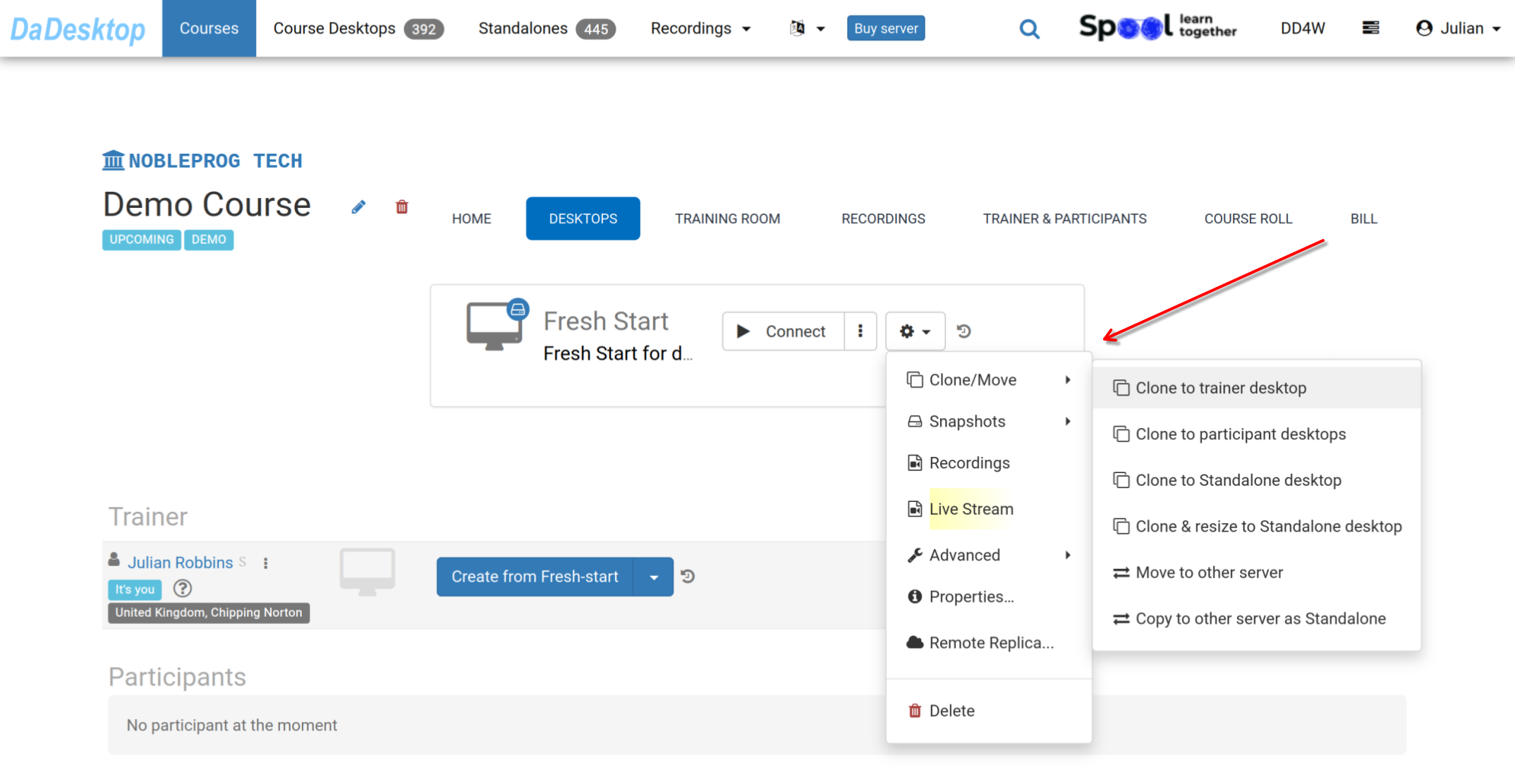
Your Fresh Start is now prepared. Both trainers and participants can clone desktops from it.
The Fresh Start serves as a course desktop that allows cloning to all participants and the trainer in one go. Anyone in the course can restore their desktop from the Fresh Start when needed.
From the ‘Cog’ menu, you’ll find many other options, such as cloning the Fresh Start to a Trainer, Participant, or Standalone machine, as well as cloning and resizing it for standalone use. Additional actions include moving the Fresh Start to a different server, creating Snapshots, reviewing Recordings, or configuring a Remote Replica.Please refer to the documentation for more details on these features as appropriate.