Instructor Session Recordings
DaDesktop provides several methods for creating desktop and course recordings, including troubleshooting captures, training room recordings, and recordings specifically from the instructor’s machine.
These instructor recordings are captured from the trainer's DaDesktop device. To initiate a recording of the trainer's machine, follow the steps below.
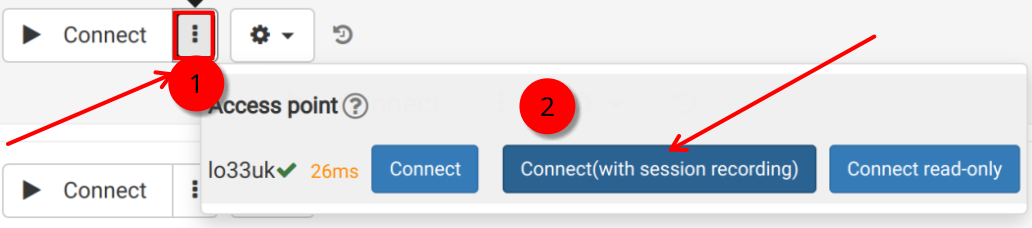
- Select the three-dot menu to open a dropdown, and then pick 'Connect (with session recording)'.
-
The system starts capturing audio and video from the trainer's machine, but the recording is not accessible until the virtual classroom is closed and the file is finalized. Note: SuperAdmin users have an extra option to watch live recordings as they happen.
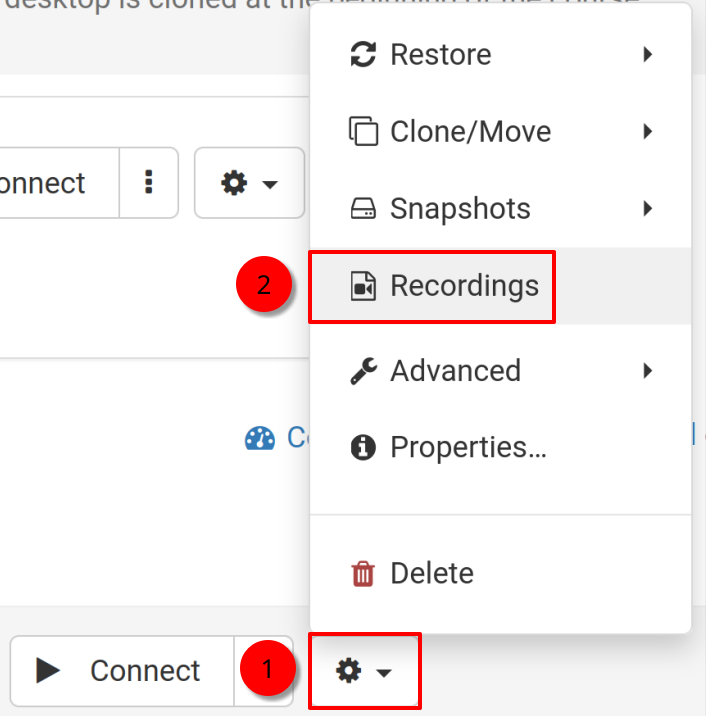
- To access and edit your recordings, click the settings icon (cog) and go to the Recordings section.
Viewing Recordings
You can review instructor machine recordings in two different ways.
- Open the Recordings menu as described above. You can play or delete recordings there. The wrench (double spanner) icon marks 'Troubleshooting Recordings', which are created automatically for diagnostic purposes, not for presentation.
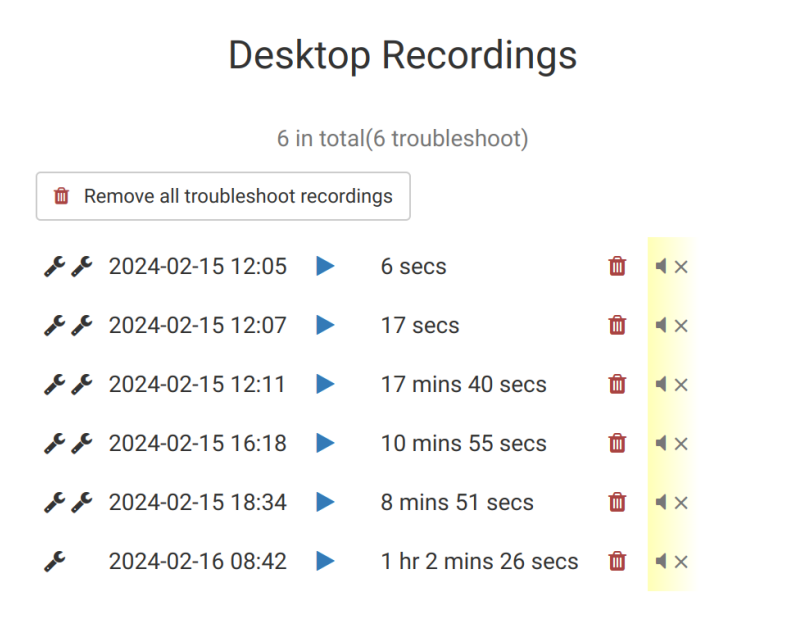
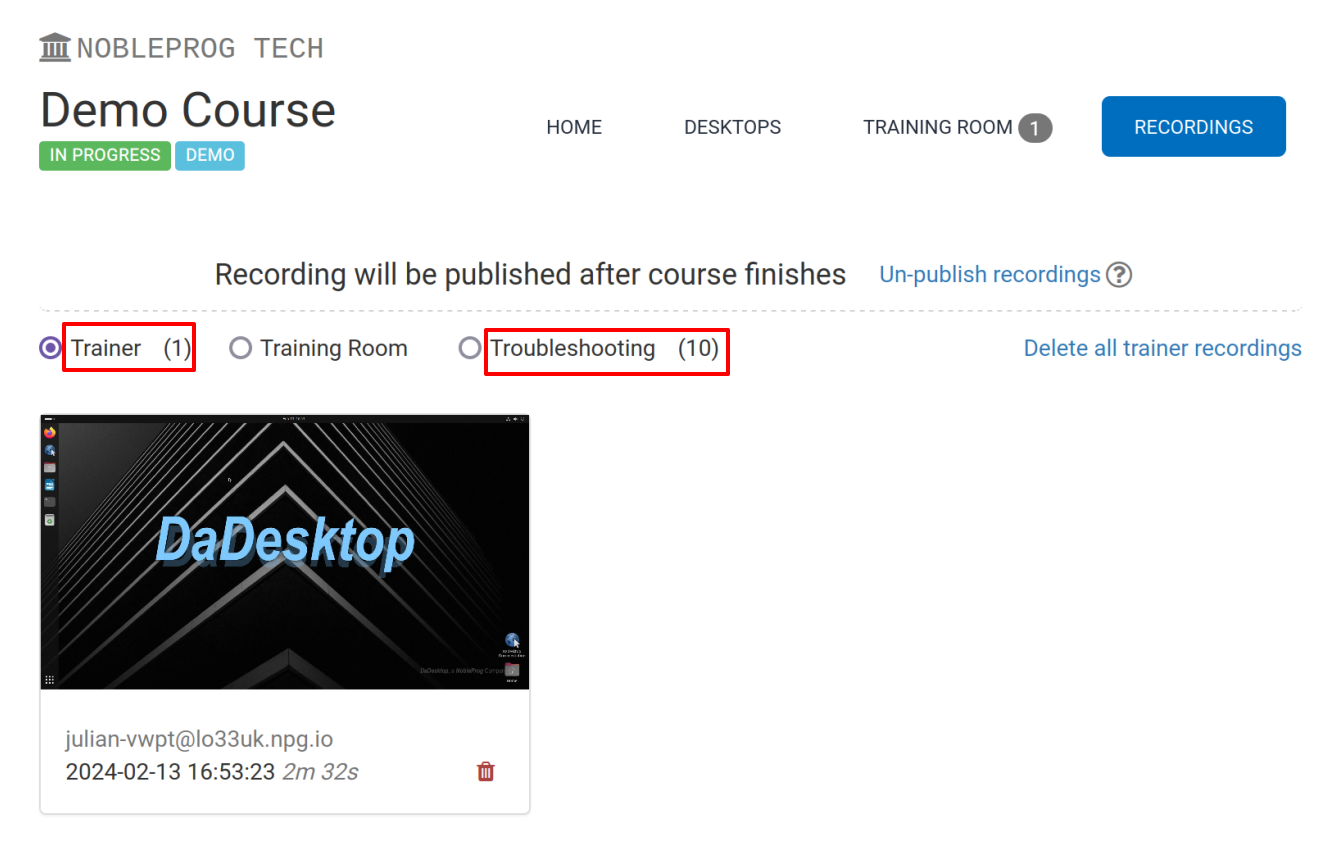
2. From a course’s 'Recordings' tab, you can view instructor recordings, training room captures, and troubleshooting recordings.